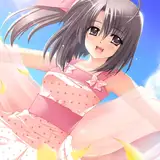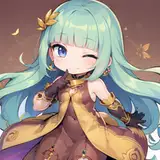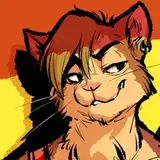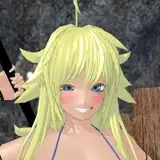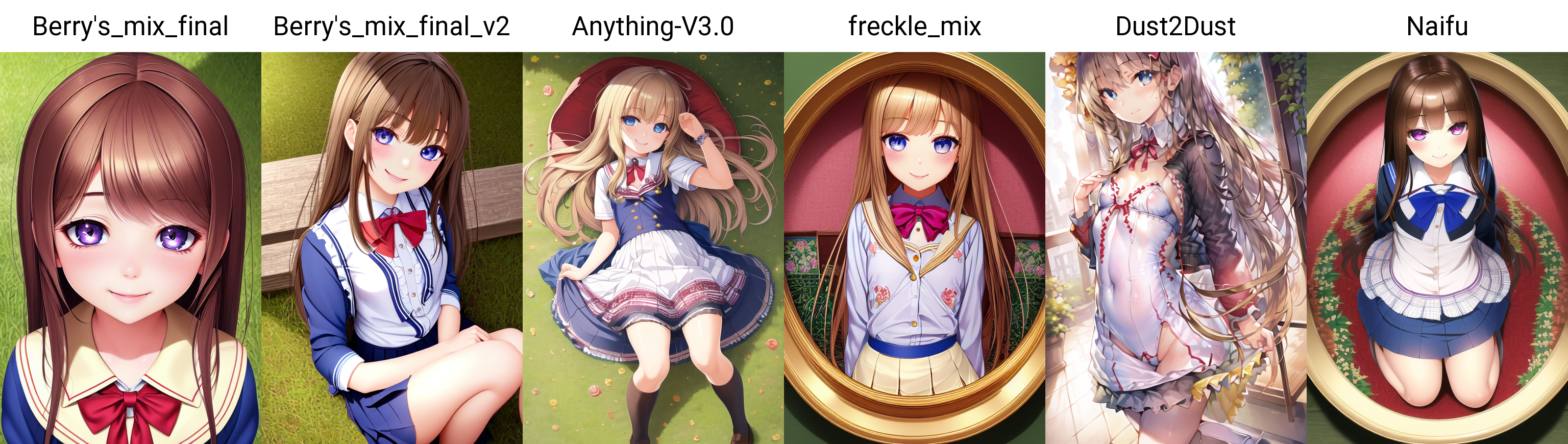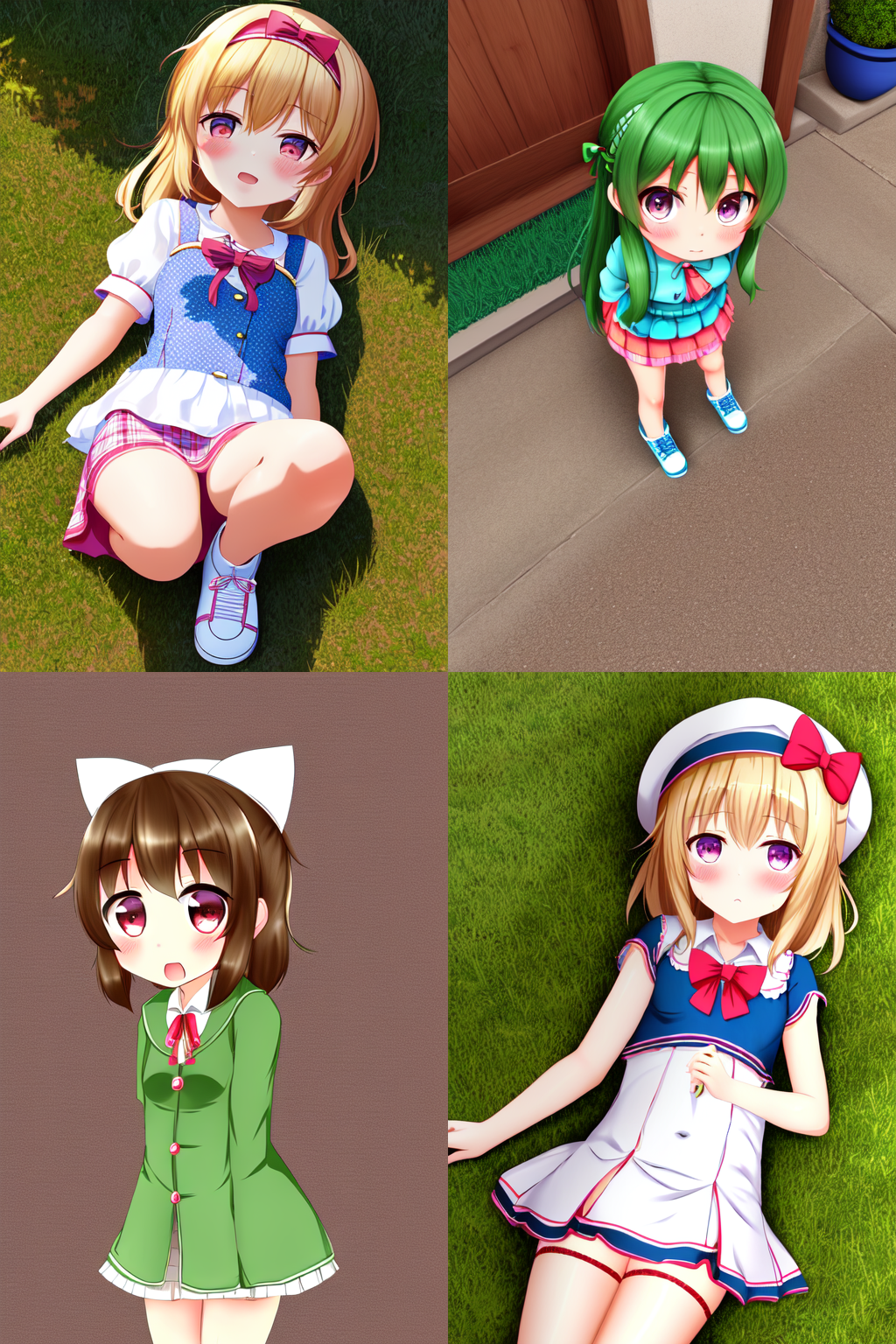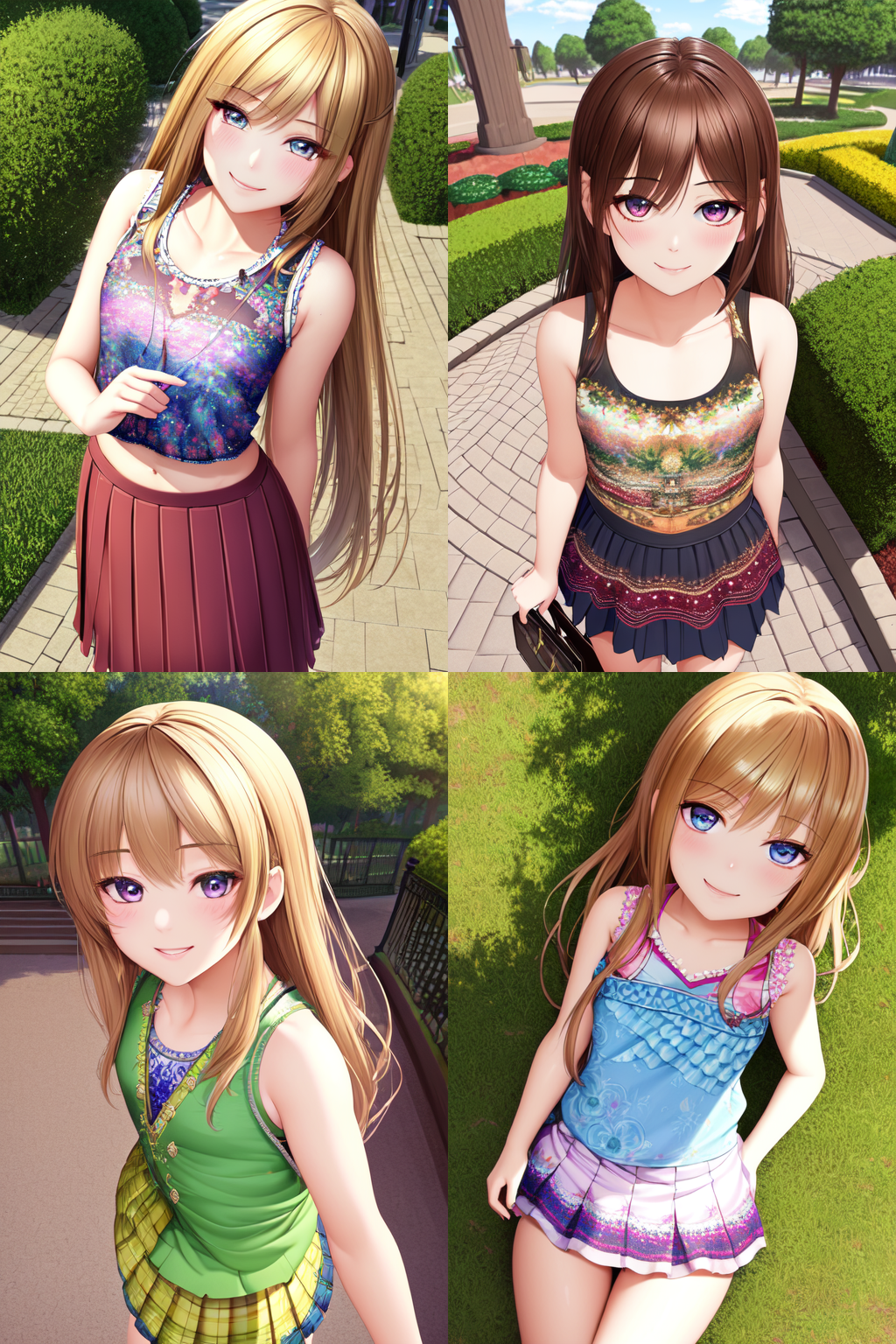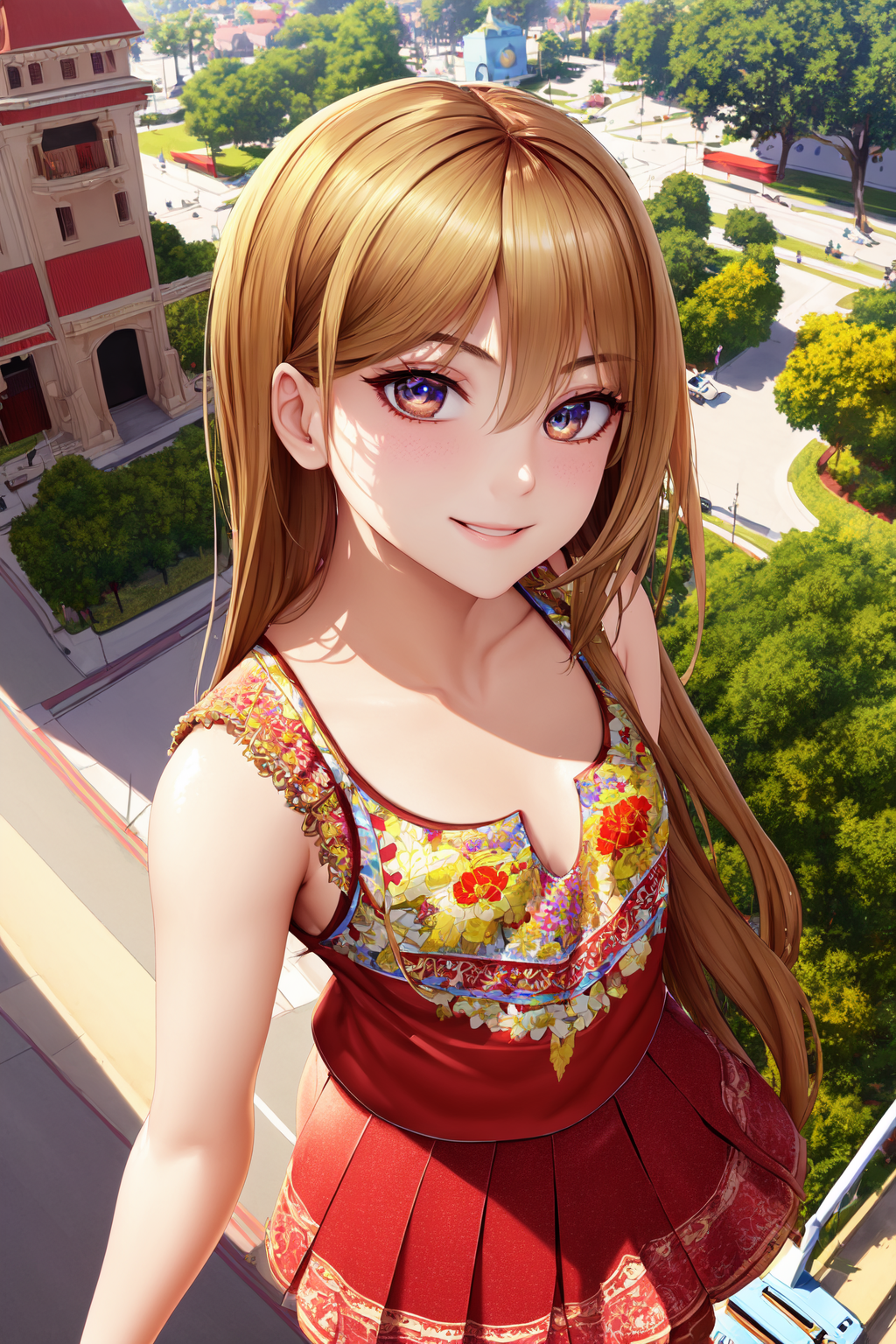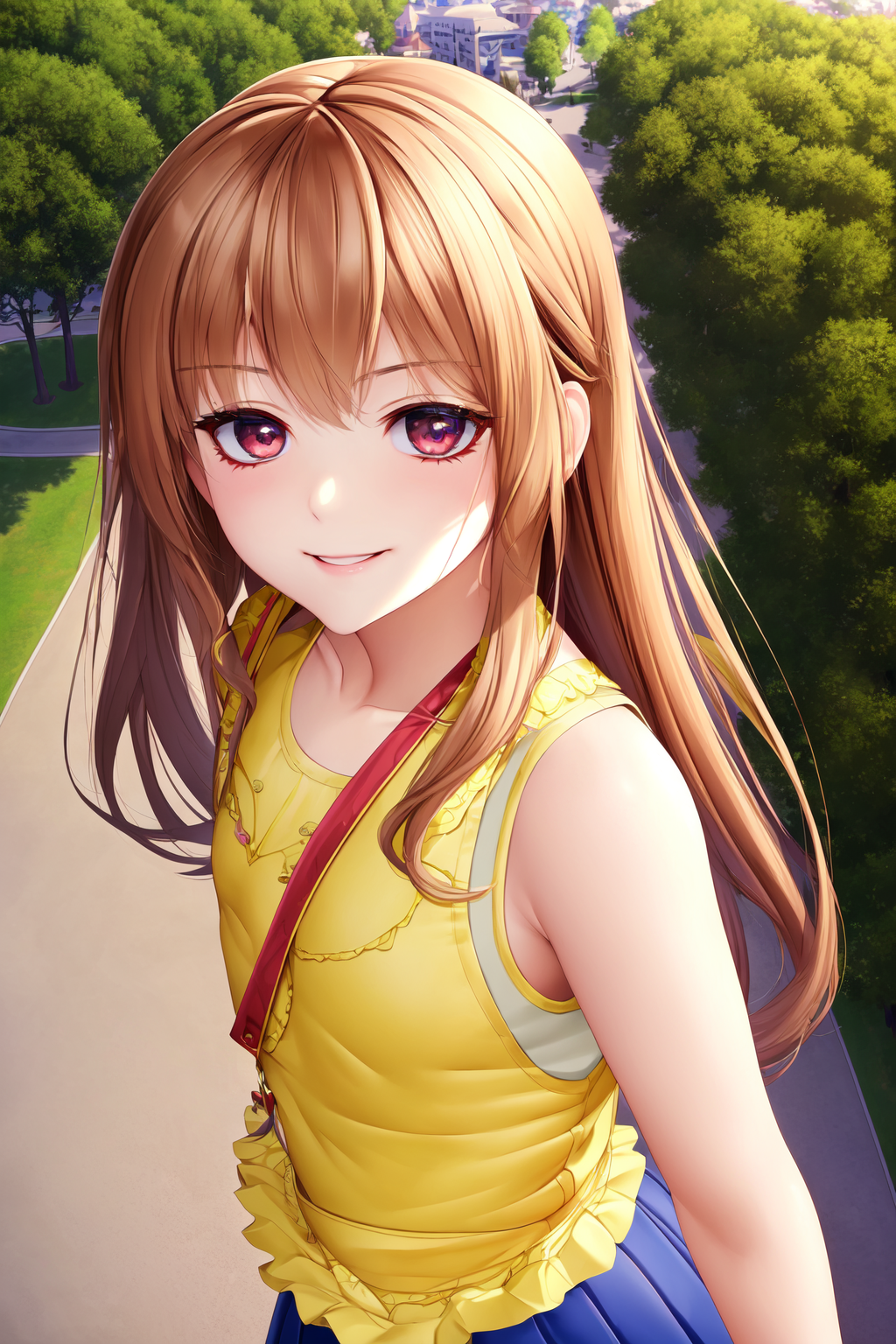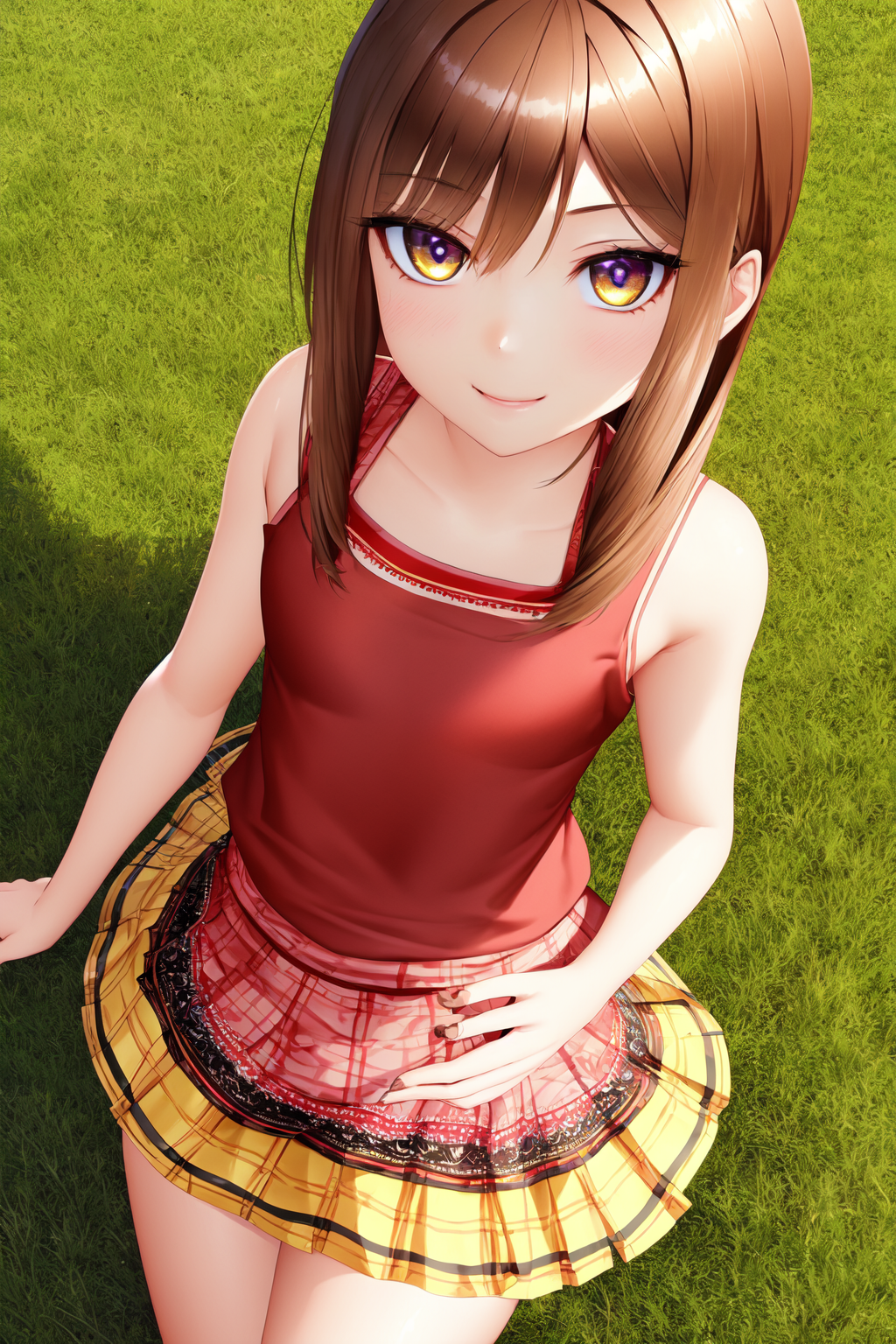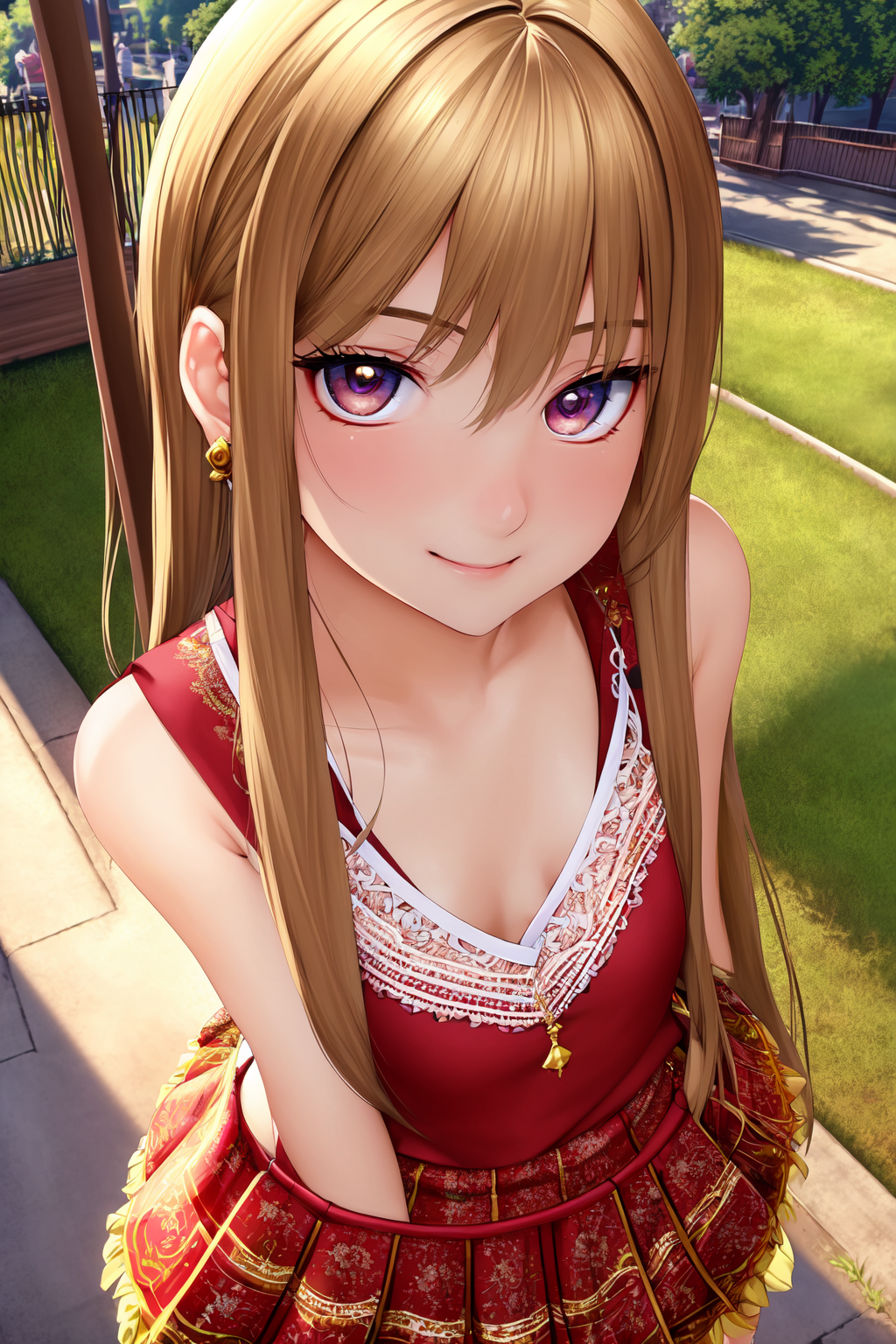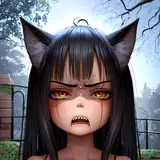
I've gotten some requests for what models I use and what prompts I use for the images I post, so I'm writing this to give you an idea of what I do and how to find that information.
I use the Automatic1111 stable diffusion webui program on my computer. You can find it here, and a good install guide for it here. The next is which model to use, that is up to you as there are many very good models, but I mainly use a model extremely similar to BerryMix, or custom mixes that are over 70% BerryMix with others mixed in to give certain effects. You can find many models here. When you change models you'll likely have to change your prompt as a prompt that works well on one model may not work so well on another. You can see below how the image is changed just by changing the model.
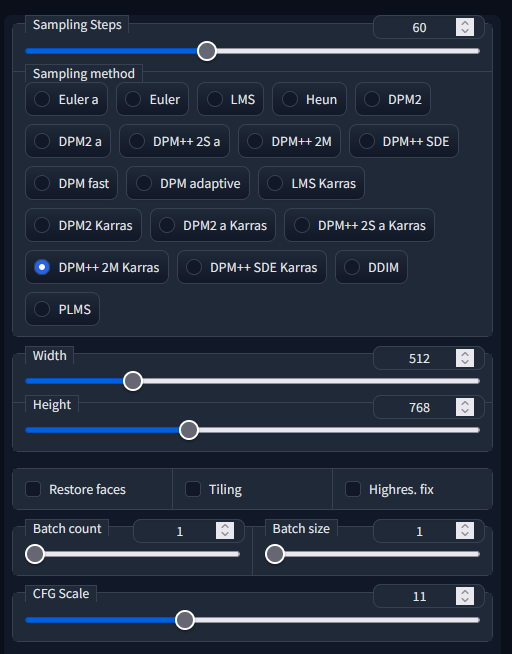
The basic settings I use are the DPM++ 2M Karras sampler at 40-60 steps and a CFG of around 10-14. I used to use the Euler a or DDIM samplers, but I found that DPM++ 2M Karras gives better outputs for me, I encourage you to try them all to see if one works out better for you, same with the number of steps.
I mainly generate images at 512w x 768h, that tends to be a good ratio for standing subjects or to show most of their body, but if the image composition requires it I've flipped those so the image is 768w x 512h.
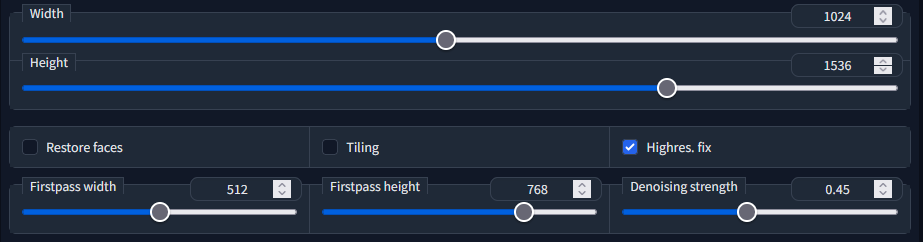
Once I narrow down the prompt at smaller resolutions, I then generate a large batch using the highres fix option. What this does is generate an image at a smaller resolution and then upscales it and uses that upscaled image as a base to generate a new image using your prompt. I set the firstpass witdth and height at the smaller resolution that I had used and set the final resolution at double that, so if my firstpass width and height were 512x768, my final resolution would be 1024x1536. I also use a denoising strength of 0.4 to 0.5, I find this range gives a good amount of details while minimizing deformities and errors. These are the images that I then post to pixiv, once I weed out any bad images. The full batch does get posted here to fanbox so you can see what sort of errors that can get generated.
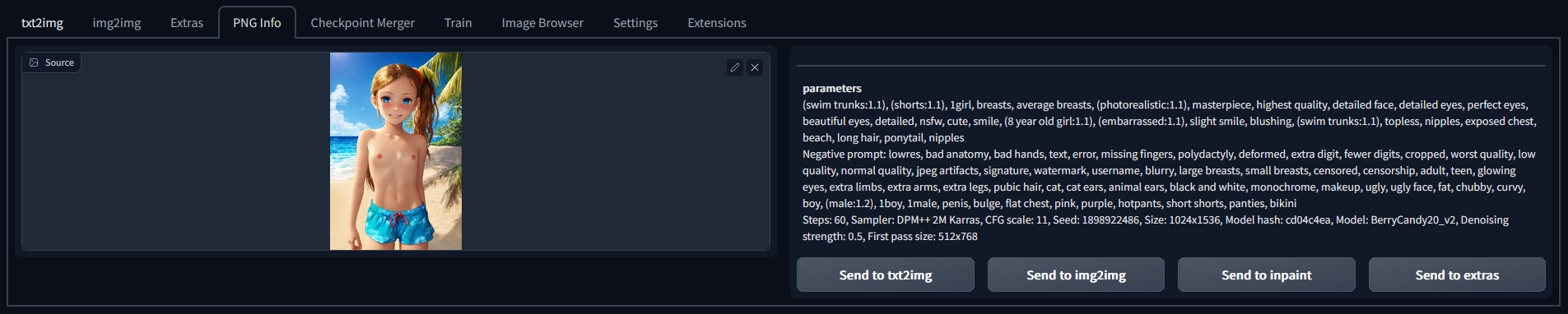
As a note, all the images that I post that haven't had censorship applied all have the prompt information embedded in them so you can take them and drag them into the png info tab of the stable diffusion UI to see what the prompt and settings were. You can also open the image in a text program like notepad and the information is at the top of the file.
The basics of prompt writing are that the closer a word or phrase is to the beginning of the prompt, the more importance the program places on it so if you really want something in your image you should have that near the beginning.
The way I write prompts is by using a series of tags and phrases, rather than full sentences. My thinking is that the models I used were trained on images with tags so I should prompt for images that way, though many people get very good images by using sentences, so experiment to find out which way works better for you and the model you use.
The best way to show you how to write prompts is by going through examples, so lets generate some images.
To start with here is the default negative prompt that I use with most of my images, I will add some tags if I am getting something that I don't want, but this is the base that I use.
"lowres, bad anatomy, bad hands, text, error, missing fingers, polydactyly, deformed, extra digit, fewer digits, cropped, worst quality, low quality, normal quality, jpeg artifacts, signature, watermark, username, blurry, censored, censorship, extra limbs, extra arms, extra legs, black and white, monochrome"
Next, lets write a positive prompt, we'll keep it simple for now and we'll add to it as we go. For now let's just put "loli" as our prompt.
The other settings are the same as above for the low resolution images and a CFG scale of 11. As I said above you can take any of these grids to see the exact settings used to generate it.
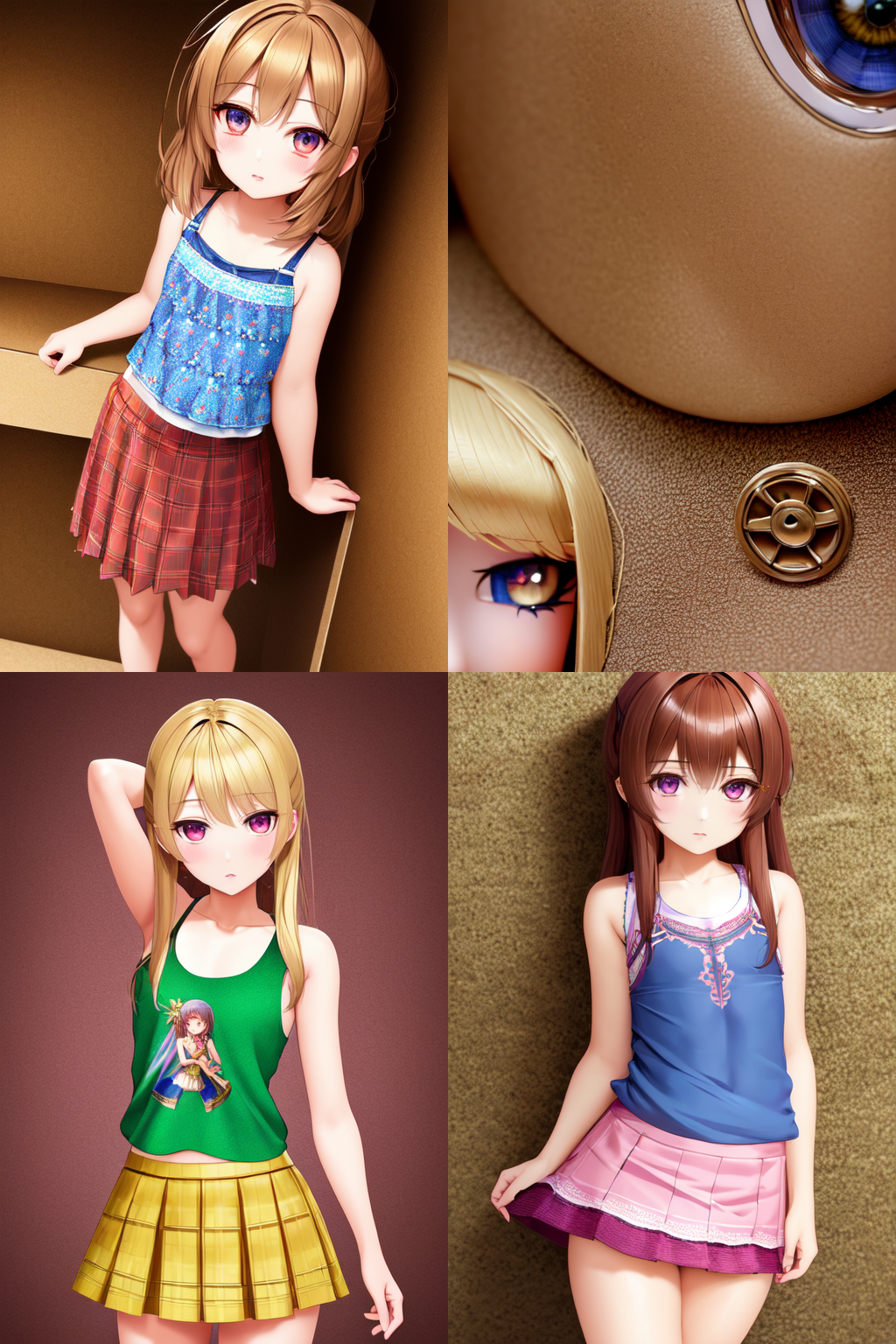
As you can see we got some images, they don't really have a coherent style and you can see some errors in them, but they look fairly good. For the next set of images we'll keep the seed the same so we can see how the images change as we change the prompt. The seed for the top left image is "4170250174" and it increases by 1 for each image, so the bottom right seed is "4170250177". At this point many people will add different artist tags which gives them more consistent styles, but I don't do that.
I have a set of positive tags that I use in most of my images that is pretty much always at the start of my prompts, this set is "masterpiece, highest quality, highly detailed, detailed eyes, detailed face". If you have any prompt about the face or eyes then the subjects in the images will be facing the "camera" so if you want them facing away then you should take out the face and eye tags.
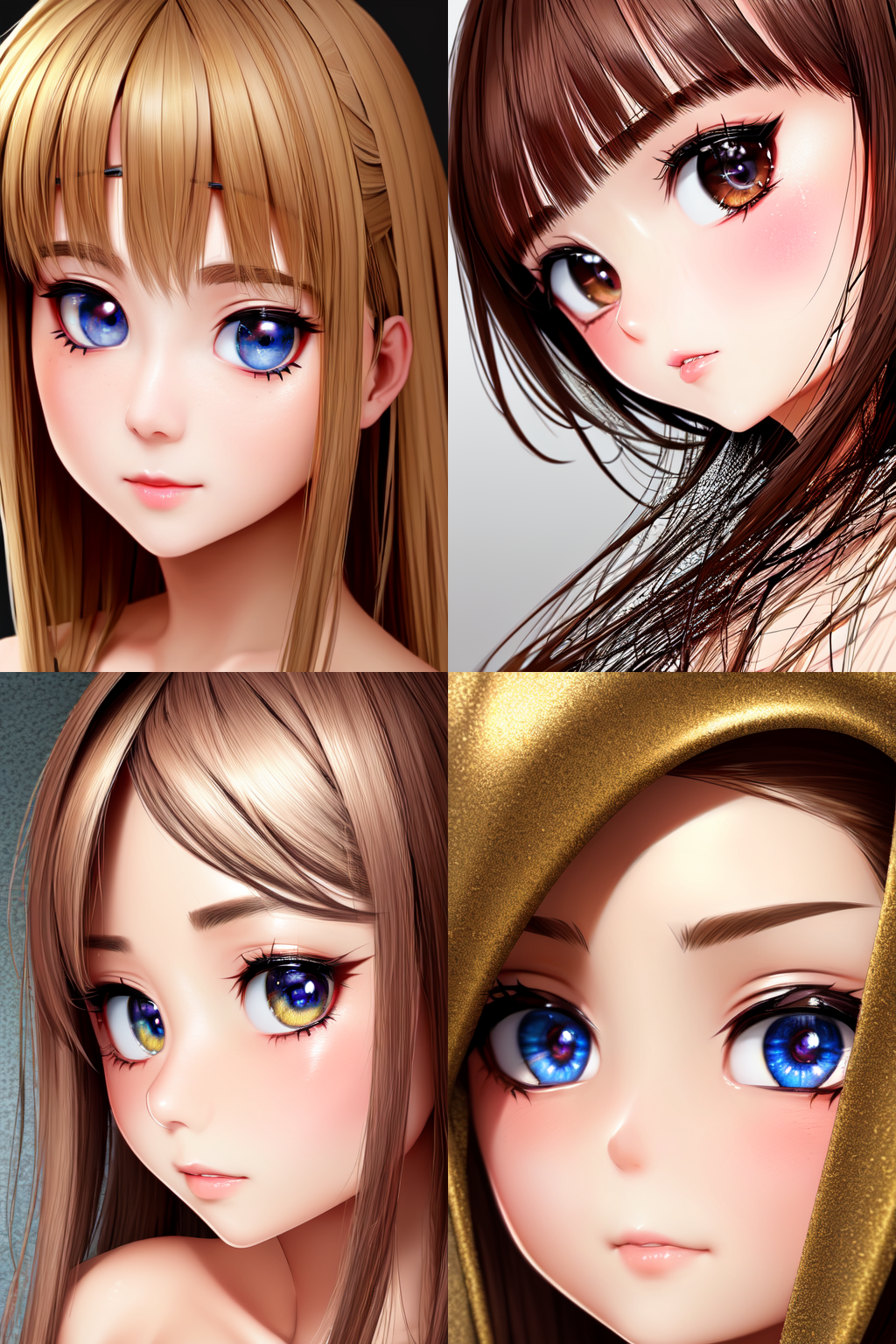
With that out of the way our next prompt is "masterpiece, highest quality, highly detailed, detailed eyes, detailed face, loli". You can see we inserted the new tags at the beginning because I want them to have the most focus.
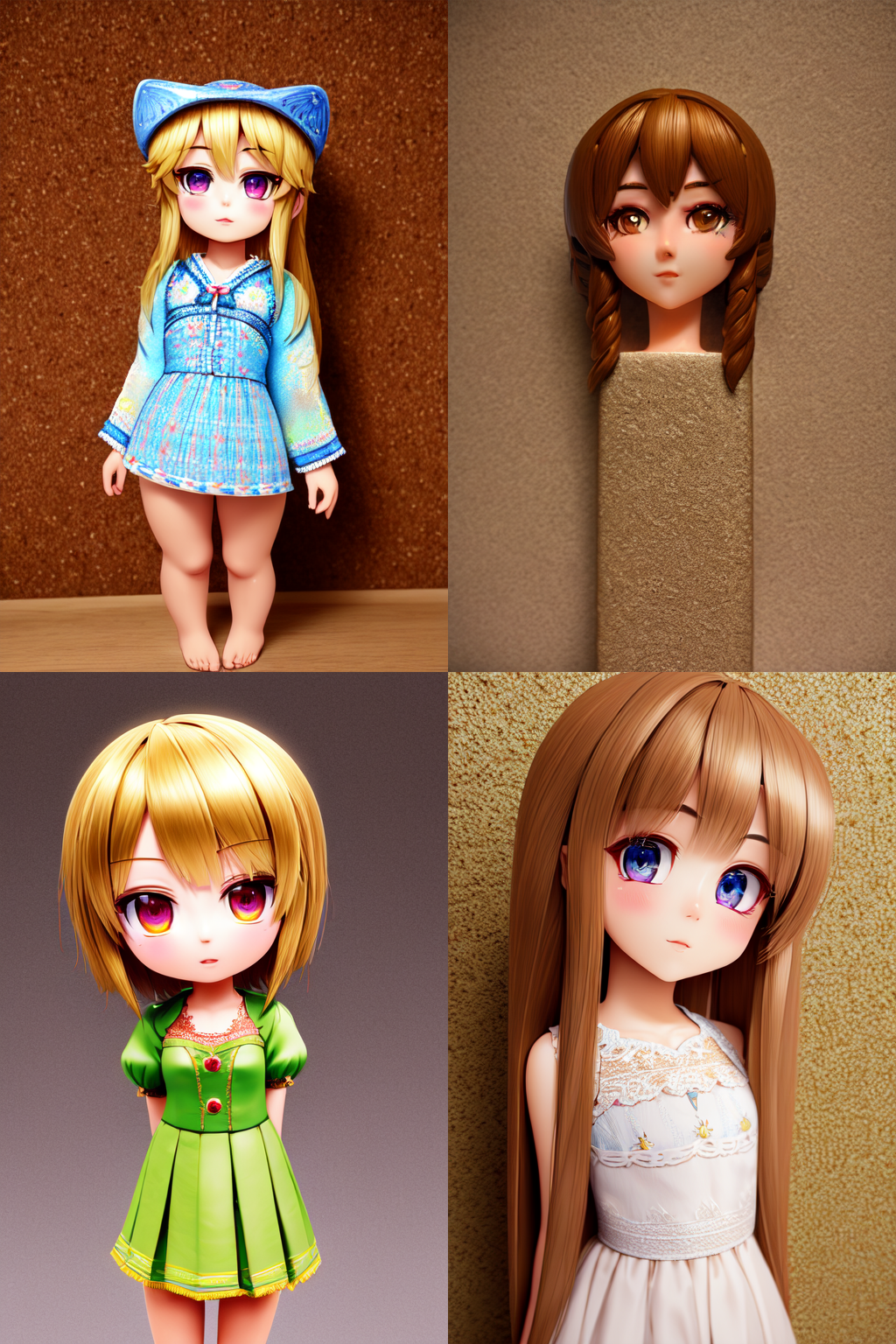
As you can see the images are completely different and better quality, but you can see another effect of the "detailed eyes, detailed face" part, they are just head shots. To counteract this you can use tags like "full body" or "wide angle", or you can prompt for things that are below the head, like clothing, legs, shoes, etc. For this set we'll use "full body" and while we're at it lets add "standing" so we get a more consistent pose. So now the prompt is "masterpiece, highest quality, highly detailed, detailed eyes, detailed face, loli, full body, standing"
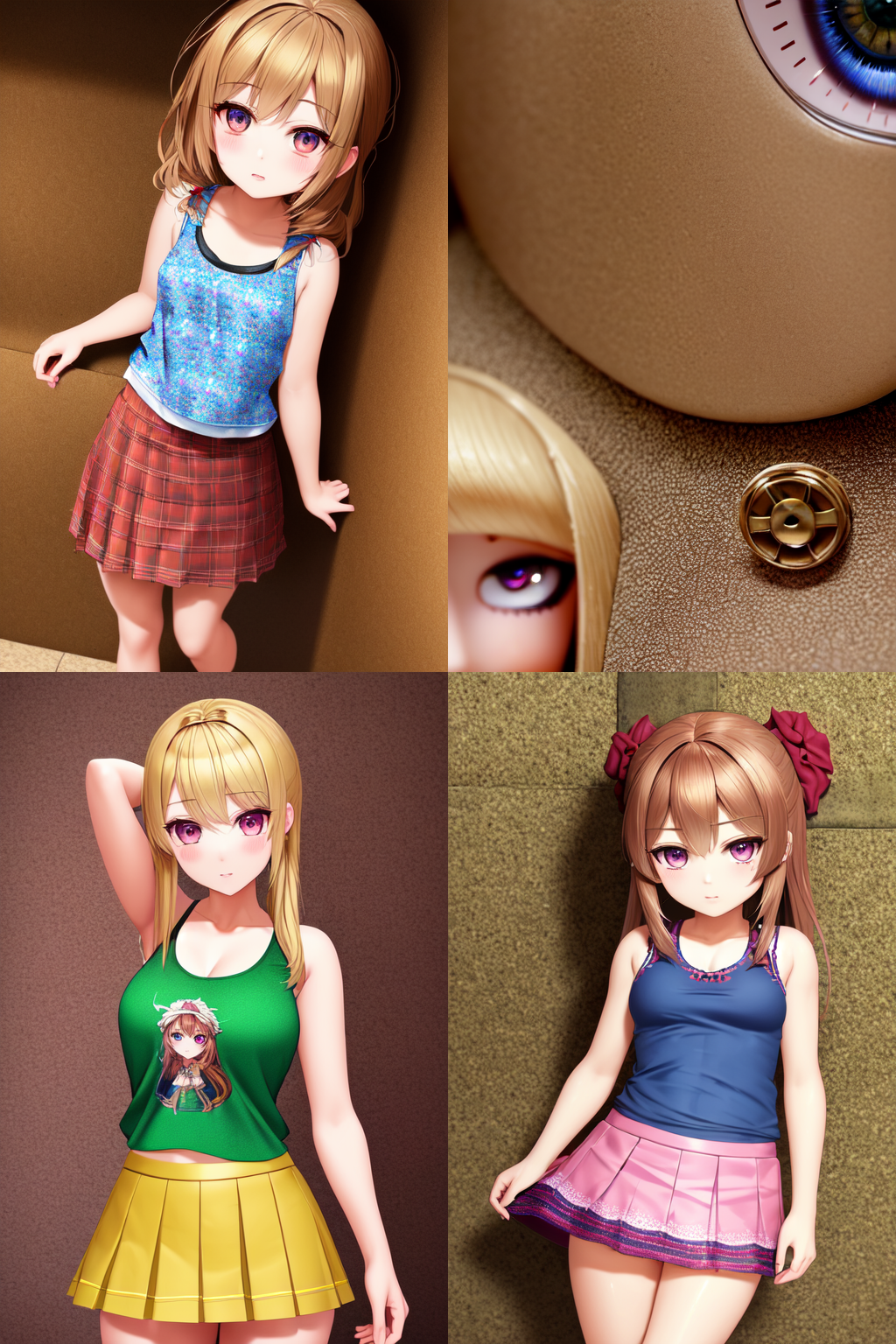
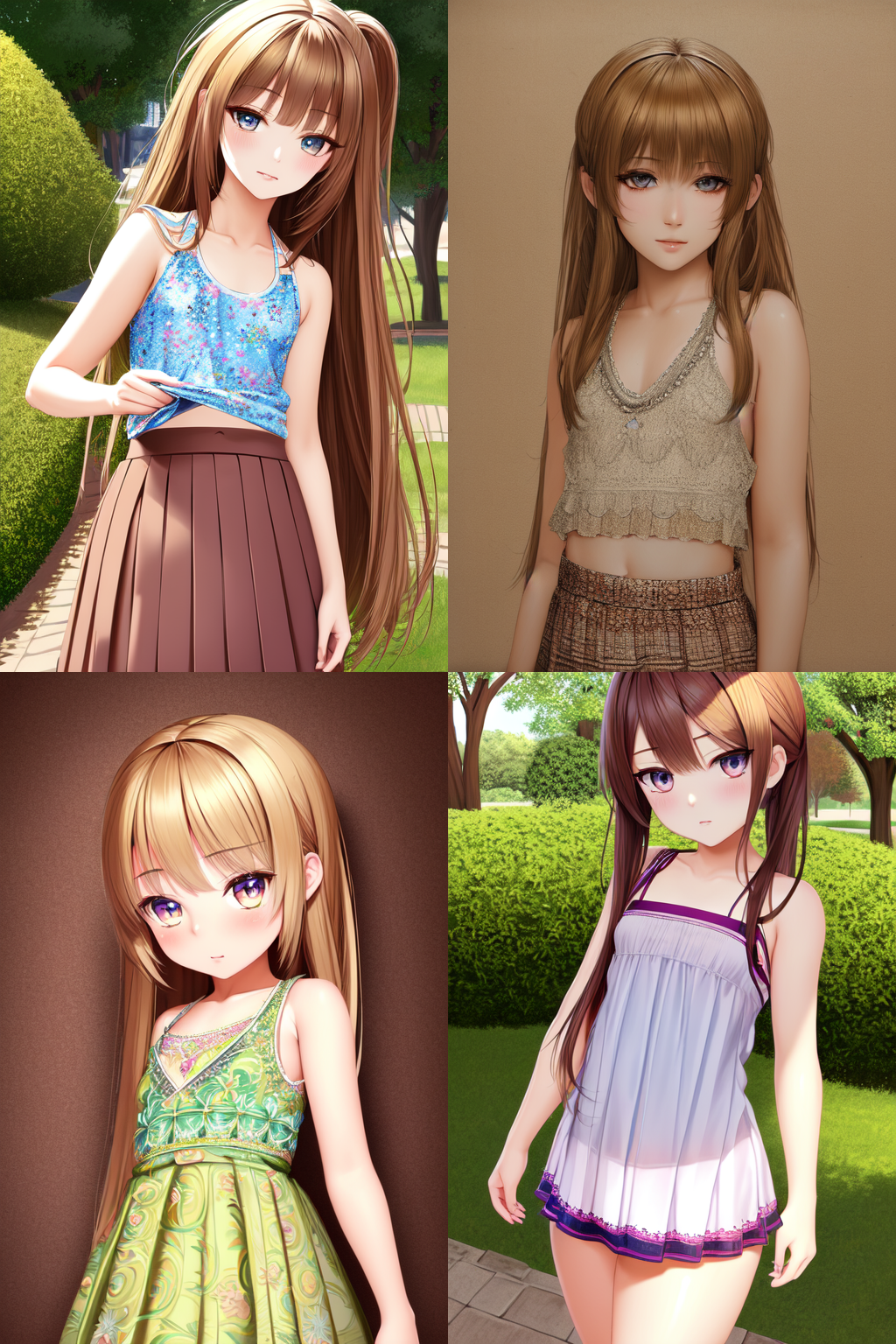
Now we have our subject standing and mostly from the waist up, but we also have a pretty notable error on the upper right, this is unavoidable, but this one may go away if we prmpt for clothes. Let's give them a simple tank top and skirt, so the prompt now changes to "masterpiece, highest quality, highly detailed, detailed eyes, detailed face, loli, full body, standing, tank top, skirt"
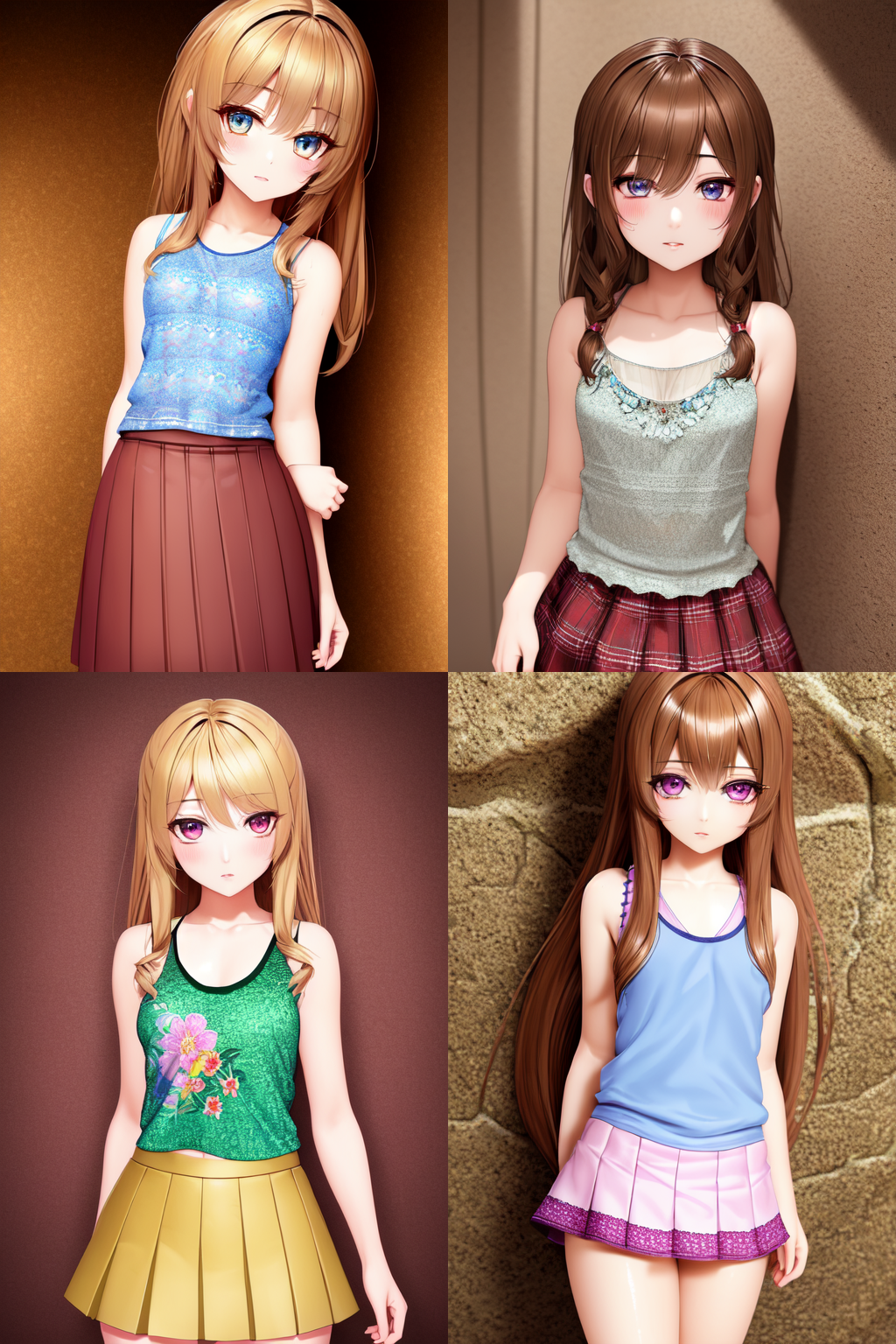
Now they're all wearing what we want, except we still have an error in the top right. Another thing is that the lower left girl is no longer a loli, so lets add some more tags to get what we want, let's add the "flat chest" tag, this should take care of it. Now the prompt is "masterpiece, highest quality, highly detailed, detailed eyes, detailed face, loli, full body, standing, tank top, skirt, flat chest". This should be a smaller change than the previous images so we should get similar girls.
Yep, that seems to have worked, all the girls have flat chests, ignoring the top right. For this next batch lets add some more modifiers, let's add "detailed hair, detailed clothes, beautiful eyes" before "loli" in our prompt, so it's now "masterpiece, highest quality, highly detailed, detailed eyes, detailed face, detailed hair, detailed clothes, beautiful eyes, loli, full body, standing, tank top, skirt, flat chest"
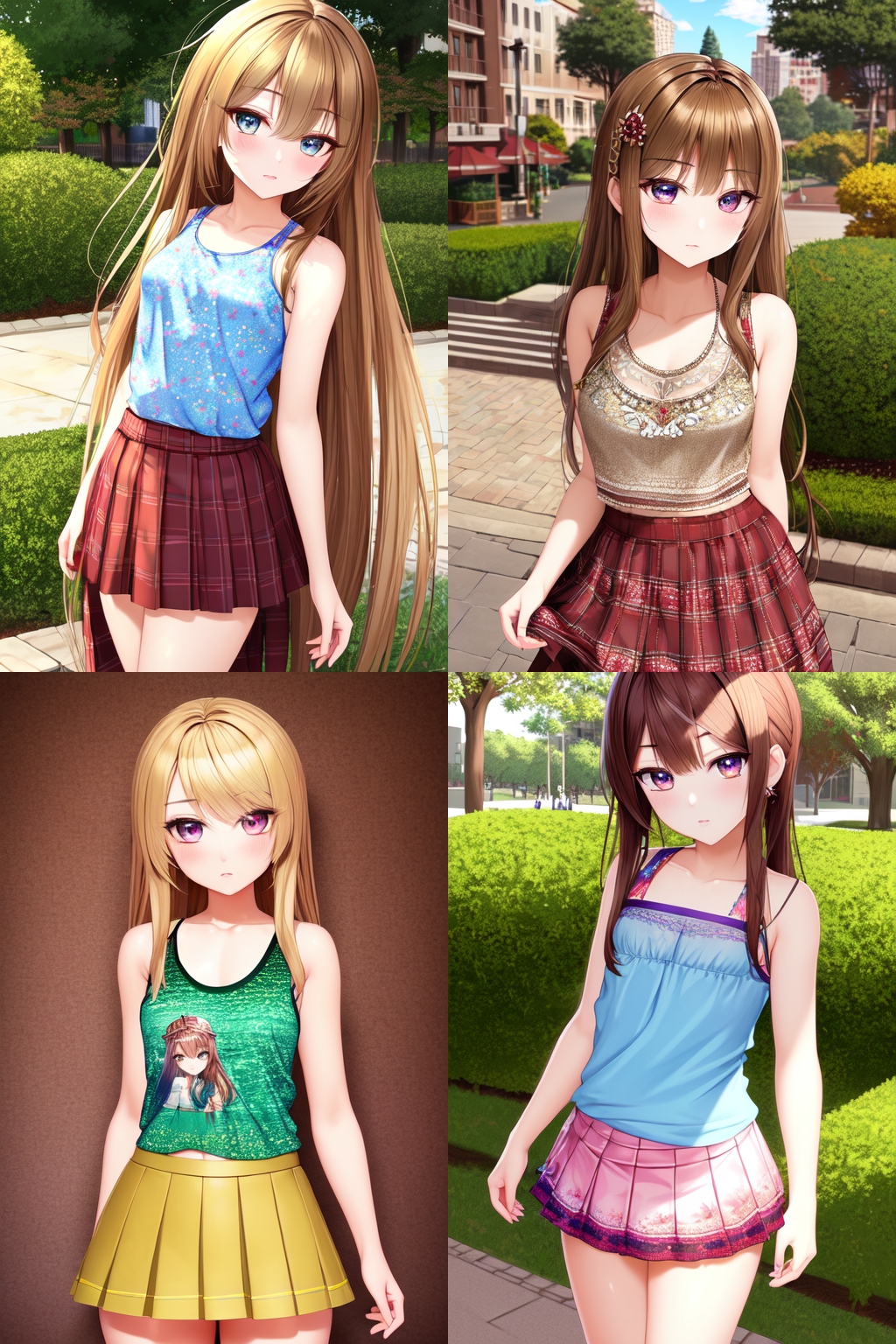
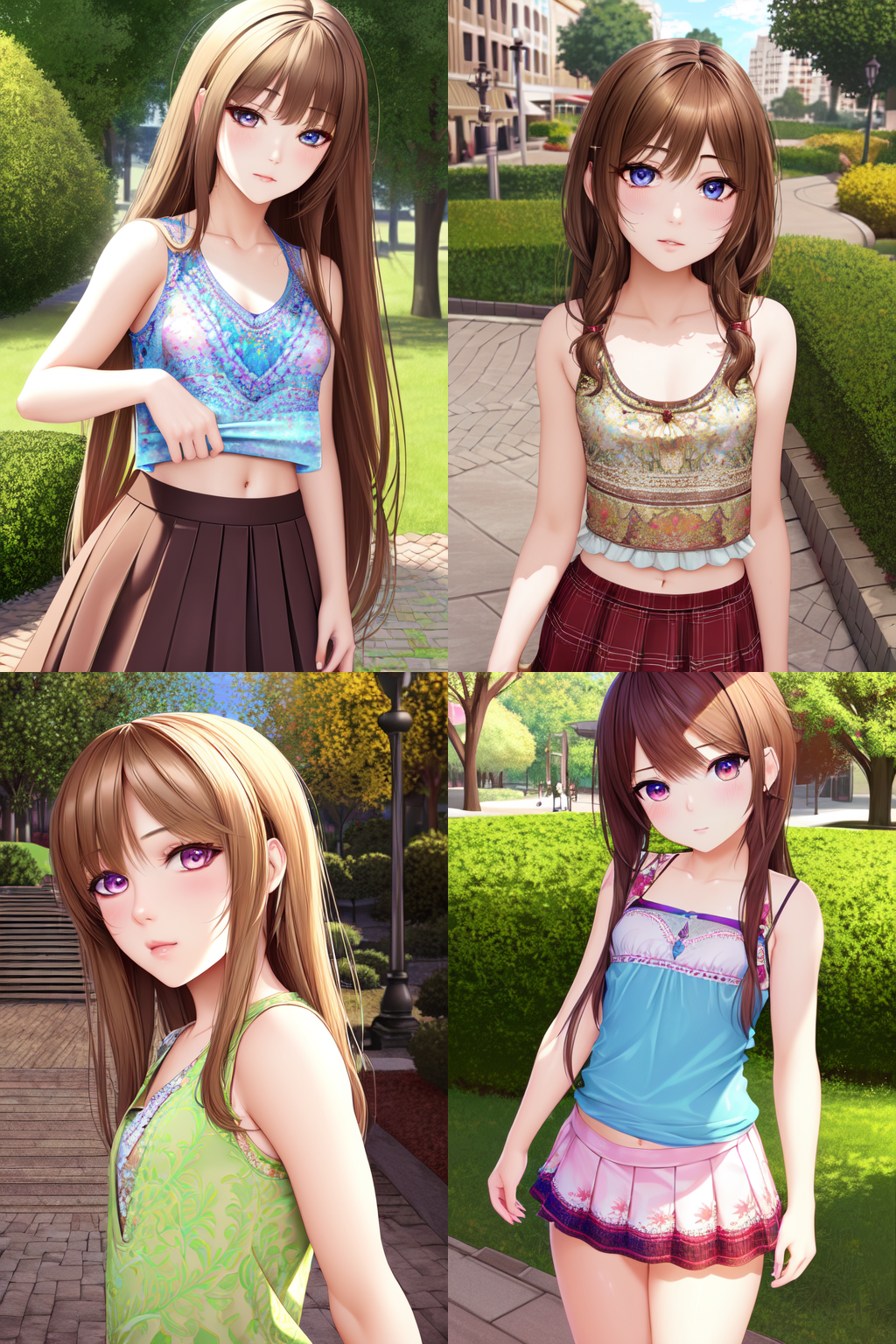
The eyes are a bit better, the clothing is a bit getter, and, hey, the top girl is no longer just a deformed face. Now let's put them somewhere as they are standing in front of nondescript backgrounds like it's a photoshoot. Let's just add "public park" at the end of the prompt which makes the prompt now "masterpiece, highest quality, highly detailed, detailed eyes, detailed face, detailed hair, detailed clothes, beautiful eyes, loli, full body, standing, tank top, skirt, flat chest, public park"
Now they are somewhere, except for the bottom left. With all the tags we've added their chests have grown, we can adjust this 3 ways, increase the CFG scale, add weight to the "flat chest" tag by putting it in parenthesis, more parenthesis is more emphasis, e.g. "((flat chest))", or by moving "flat chest" closer to the beginning. Let's try the third option and put it just after "loli" in our prompt. The prompt is now "masterpiece, highest quality, highly detailed, detailed eyes, detailed face, detailed hair, detailed clothes, beautiful eyes, loli, flat chest, full body, standing, tank top, skirt, public park"
That worked out, their chests shrunk. If it didn't and they still had larger boobs, then you could put "flat chest" closer to the beginning or add weight as stated above. Let's influence the style of the images, we'll add a tag at the beginning, starting with "drawing" making our next prompt "drawing, masterpiece, highest quality, highly detailed, detailed eyes, detailed face, detailed hair, detailed clothes, beautiful eyes, loli, flat chest, full body, standing, tank top, skirt, public park"
That changed the style of the images, some more than others. Let's now try replacing "drawing" with "photorealistic". Or prompt is now "photorealistic, masterpiece, highest quality, highly detailed, detailed eyes, detailed face, detailed hair, detailed clothes, beautiful eyes, loli, flat chest, full body, standing, tank top, skirt, public park"
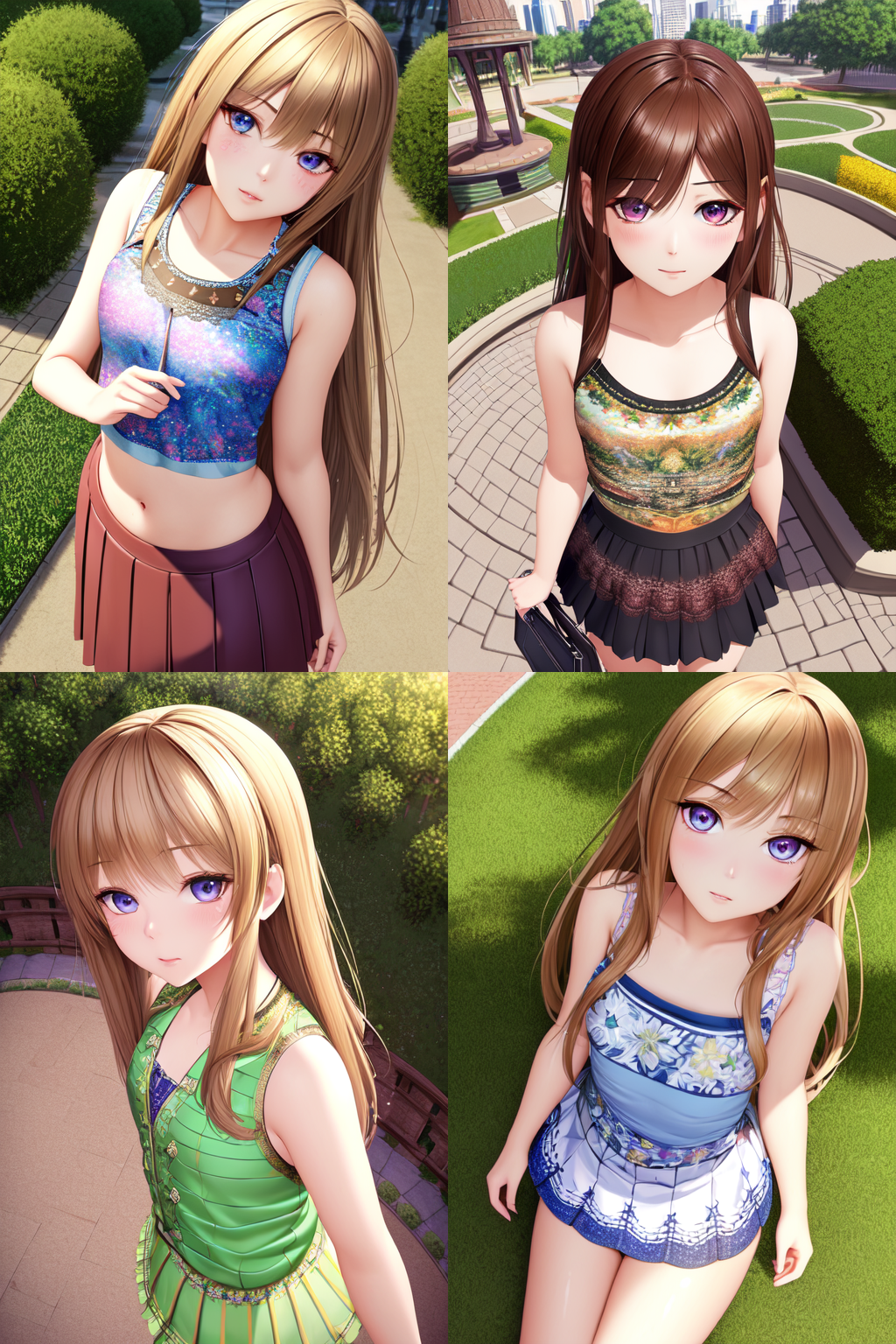
That added more details and changed the proportions of all the images. If we want to change the angle of the image or subject, we can use tags like "from above", "from below", "from side", "profile", etc. Let's add "from above" to see what happens. The prompt is now "photorealistic, masterpiece, highest quality, highly detailed, detailed eyes, detailed face, detailed hair, detailed clothes, beautiful eyes, loli, flat chest, full body, standing, tank top, skirt, public park, from above"
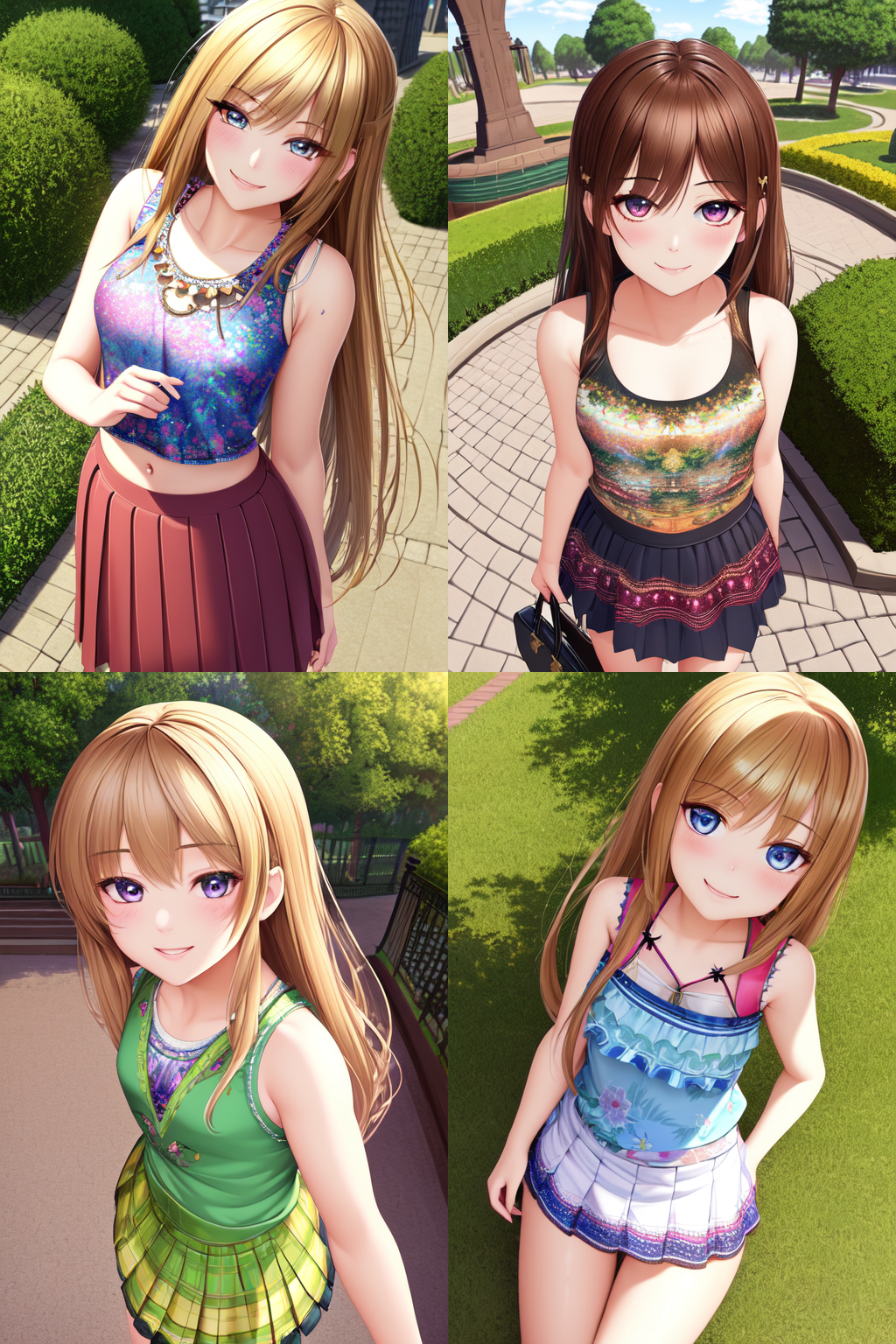
That did about what you'd expect based on what we added. Let's now change their expression. You can use general words like "happy", "angry", or "sad", or you can use expression words like "smile", "frown", or "scowl", or you can use emoji's and emoticons in some models like ":)", ":D", or ">:(". Let's use "smile" and "happy" making our prompt "photorealistic, masterpiece, highest quality, highly detailed, detailed eyes, detailed face, detailed hair, detailed clothes, beautiful eyes, loli, flat chest, full body, standing, tank top, skirt, public park, from above, smile, happy"
They're happy now, but their chests have been growing as we've been adding tags. Let's add some emphasis to the "flat chest" tag so the prompt now becomes "photorealistic, masterpiece, highest quality, highly detailed, detailed eyes, detailed face, detailed hair, detailed clothes, beautiful eyes, loli, (flat chest), full body, standing, tank top, skirt, public park, from above, smile, happy"
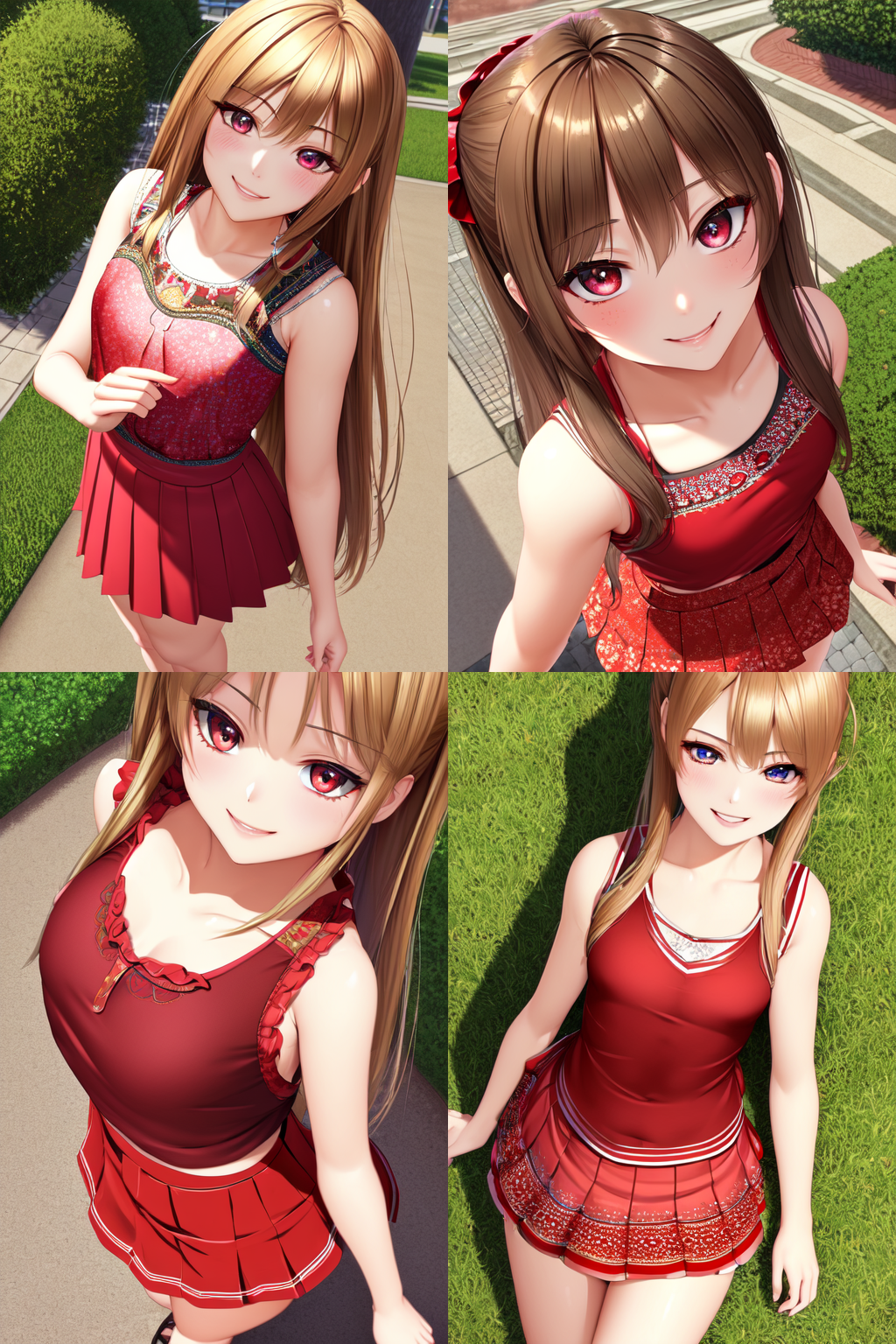
Yeah, that worked. Let's change the color of their clothes, if we put "red" in front of the tanktop tag, it should change the color, though I expect the color to bleed into other items. The prompt is now "photorealistic, masterpiece, highest quality, highly detailed, detailed eyes, detailed face, detailed hair, detailed clothes, beautiful eyes, loli, (flat chest), full body, standing, red tank top, skirt, public park, from above, smile, happy"
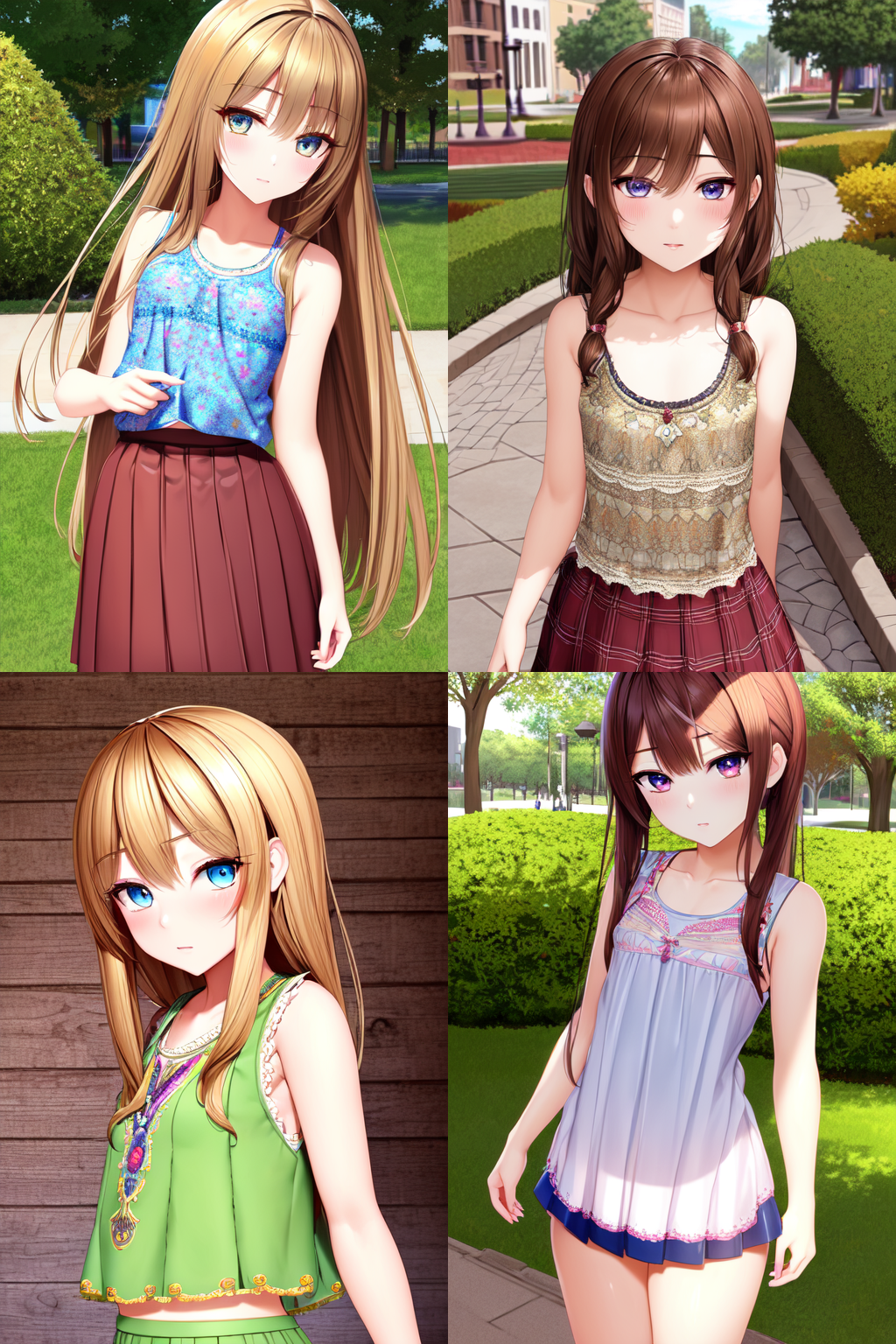
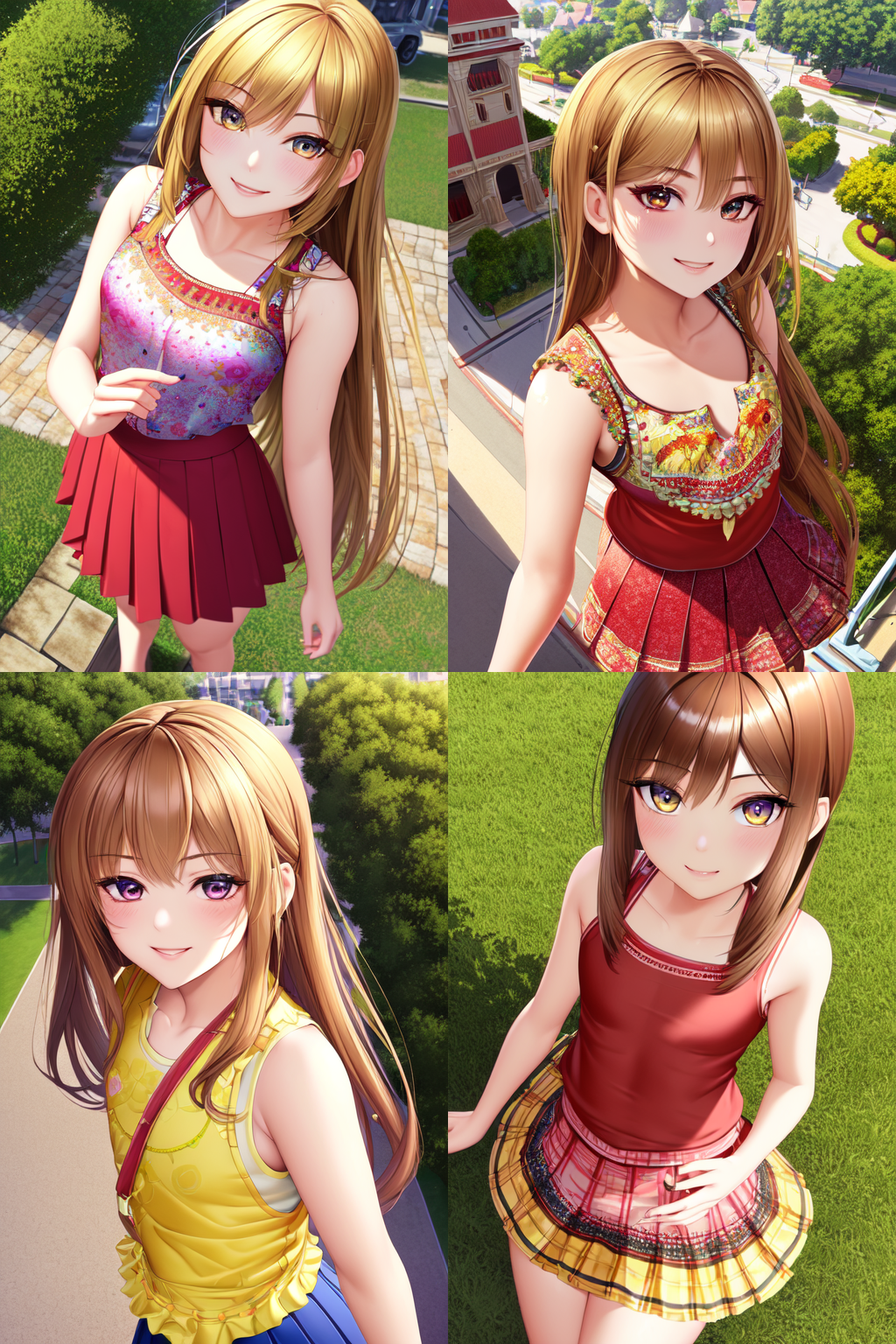
Their tank tops are now red, but so are their skirts and eyes. If you want to fix that you can add colors to the skirt tag and add eyecolor tags, but it won't gurantee that the color only applies to that specific item. Let's do something a bit more advanced and change the "red" part of the tag to "[red|yellow]". What that will do is to change the color between red and yellow each step of image generation, I find this can give some interesting effects of different colors on the items. Our prompt now becomes "photorealistic, masterpiece, highest quality, highly detailed, detailed eyes, detailed face, detailed hair, detailed clothes, beautiful eyes, loli, (flat chest), full body, standing, [red|yellow] tank top, skirt, public park, from above, smile, happy" and let's see what happens.
You can see, especially on the right images, how the details are colored yellow while the base color is red. I like how the images look so let's use the highres fix option and double the resolution to see what we get.
The images look pretty good, they upscaled nicely with no major defects introduced by the highres fix process. There are a lot of things that we could add to the prompt to change the images further, but the basics of what I do are all described above. Some tags have a greater effect than others and some tags have implications that suggest other tags that will further affect your image. The best way to find out how different tags work is to just experiment. If you see an image you like, see if the prompt is still in the image or stated somewhere, you'll eventually grow your knowledge of how to get what you want out of these programs.
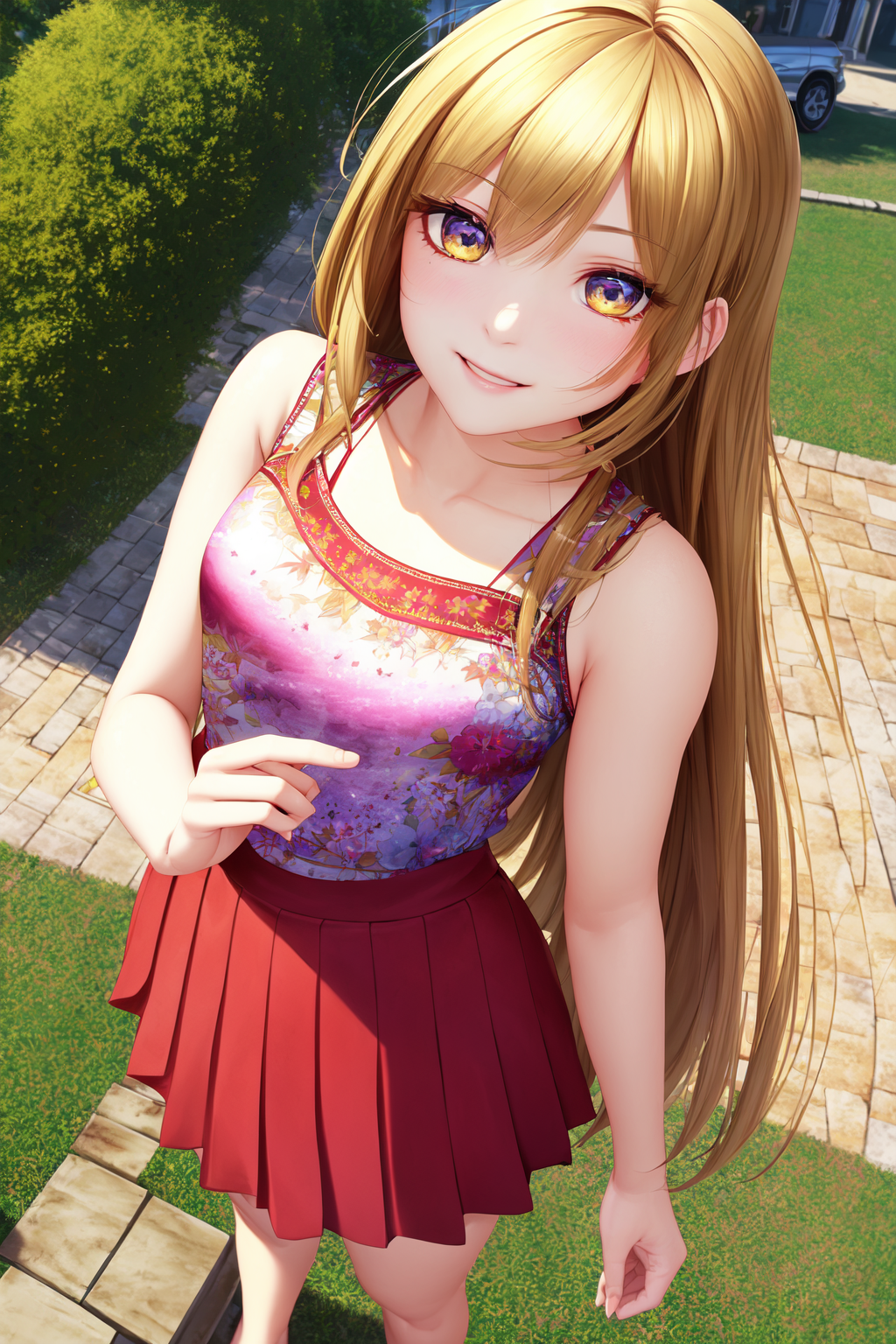
Now I will leave you an image that is based on the 2nd image in the above set. I changed the prompt slightly and I want you to try and figure out what I changed to get this image. Also, I've made it impossible to cheat by stripping out the embedded information.
To give you a hint I didn't change any of the settings and added one thing to the prompt.