Password has been sent by Email
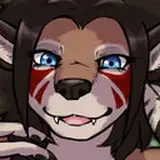
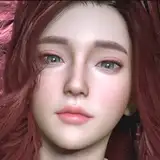
Commissioned model by Yosara76H
Full facial rig (you need to move both the Y and Z axes in XPS to avoid clipping).
As always, shapekeys have been implemented with beautiful expressions that can be combined with bones for the ultimate expressive experience!
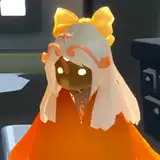
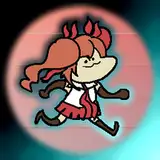
Zani - The Blazing Nightwalker
Ragunna was quiet… too quiet. Then Zani showed up.
She didn’t tiptoe into battle — she kicked the door open, gauntlets blazing, like the city was her personal stage.
“Echoes? Please,” she laughed, cracking her knuckles. “You’re just my warm‑up act.”
The first wave rushed her, and she didn’t just fight — she performed. Every punch was a spotlight, every dodge a dance step. Sparks flew, the crowd gasped, and Zani grinned like she was having the time of her life.
By the time the echoes were gone, the streets weren’t silent anymore. They were buzzing, alive, lit up by the fire she left behind.
That’s Zani: not just a Resonator, but the headliner of Ragunna’s hottest show.
-------------------------------------------------------------------------------------------------------------
DoA Style Ready Pose: In XPS format with all bones renamed.
MMD Ready Dance Pose: Prepped for MMD dancing with hair physics! (Optional Clothes in other morphs, including Blue Dress). Some materials ready for Autoluminous
Blender 3.6.9 LTS: Included in T pose!
Optional Parts: In XPS, use Ctrl + A .(Shapekeys converted to Optional Faces). A lot of optional textures. drag the texture folder "tex -- blush" over an XPS window or replace the face texture in the "tex" folder (keep a backup) In XPS don't set the shadow depth more than 10 or you will see ugly darker parts on her face. Both optional faces (converted shapekeys) and bones can be used for multiple expressions.
Optional Parts in MMD: The material morphs are located in the "Other" group. "Body Switch" allows you to toggle between two body types—the default version with clothes, and the exposed clothed version or nude version. Accesories are compatible with both bodies. Cl.Sets (Clothes Sets) habe been implemented for some costume combinations.
To hide all the default clothes at once, use "Clothes All H"
To hide only specific parts of the default clothes, use individual morphs like "Cl.Top H" to hide the Top, for example.
The exposed clothes version can be displayed easily:
Just use "Cl.Ex ALL S" to reveal the exposed clothes version inone step.
If you want to display only certain parts of the exposed clothes, use morphs that include "ex" (exposed) in the name. For example:
Use "cl.ex Top s" to show the exposed Top.
The "h" or "s" at the end of the morph names indicate their function:
"h" means the morph hides the clothing.
"s" means the morph shows the clothing.
Clothes are compatible but for the breast part. But you can use some combinations of exposed with default clothes.
All individual morphs for default clothes are designed to hide their respective items ("h" at the end), while individual morphs for exposed clothes are used to show them ("s" at the end).
Credits: Background by vecteezy.com