Simple light and shadow tutorial (ENG)
Added 2022-01-15 19:38:26 +0000 UTC
Hello everyone, this time I want to bring you this tutorial to create a simple but nice light/shadow effect.

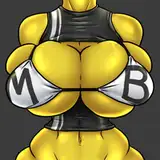
First of all, we have our drawing in its base colors.
The first step I will do is to include the shadows. For that we will first need to know where our light is coming from. In this case, I decided that it might come from the upper left corner.

This is not so mandatory to do? But if you do it can make your job easier. Go to your base color layer and press Ctrl after left clicking on it. Suddenly, you will have the outline of your entire layer selected.

Now create a new layer in multiply mode, and with the tool of your choice, start coloring the shadows. In this case I used the airbrush tool. Because I have a selected area, I don't have to worry about having to erase the outside traces.

After we have our shadows done, we have to imagine where the sun's rays fall directly. These areas will be the ones we will erase. I try to erase a little softer on the edge where the sun no longer hits directly. I also erase a little on the edges at the other end.

When we have our shadow layer ready, we do the same process with the lights. Create a new layer for the lights (Add layer mode), and select again the outline of the base colors layer. Be careful not to paint on the wrong layer!

Now, as you will see, I painted the whole layer with a dark color, which thanks to the layer mode gave it a light touch; but if you are not convinced, you can also change the color. Now comes the interesting part:

Select the outline of your shadow layer. Now, on your "lights" layer, press the Delete button to delete the entire selected area.

Now as you can see, you have quickly erased the part that carried the shadows. If you used the airbrush or a gradient tool, you can erase it more times to see how it looks.

As an additional step, I decided to lower the brightness of the base colors, so there will be more contrast with the light coming from the side.
And finally, in this way we get as a result this very elegant yet simple effect of light and shadow. I hope you found it useful :D, but don't just do these steps, try to change the procedure, playing with more layer modes and using the settings you like the most. Dare to experiment!